How to Make a WhatsApp Business Catalog: Complete Guide (With Photos)
Boost your WhatsApp sales! Learn step by step how to create and manage a product catalog in WhatsApp Business and turn chats into orders.

Show off your products in a professional way with a WhatsApp catalog ⚡
If you use WhatsApp for your business, you already know it's a powerful sales channel. In fact, WhatsApp Business has been reported to reach conversion rates of up to 15% (beating marketplaces and online stores).
So to make the most of its potential, today I'll show you how to build your own product catalog on WhatsApp - step by step.
What is a WhatsApp catalog?
In short, WhatsApp Business catalogs are listings of your products or services that show up on your WhatsApp business profile. You can add up to 500 items with their descriptions, photos, videos, prices, links and more.
This is a great free, visual way to share what you offer with your customers - especially if WhatsApp is one of your main sales channels.
Before you start: what do you need to make your WhatsApp catalog?
Here are the basics you'll need to create your first catalog:
- A WhatsApp Business account: Your personal WhatsApp is not the same as WhatsApp Business. You have to download them separately and make sure you use a different number for each one.
- Your product information: When you build your catalog you need to include a name and at least one photo for each product. If you already have those ready, let's keep going!
- Time to create the catalog: Based on our estimates, it takes 10 minutes or less to create your catalog on WhatsApp.
And with this tutorial, you'll see it's super simple. Shall we start? 🚀
How to create a product catalog in WhatsApp Business (step by step)
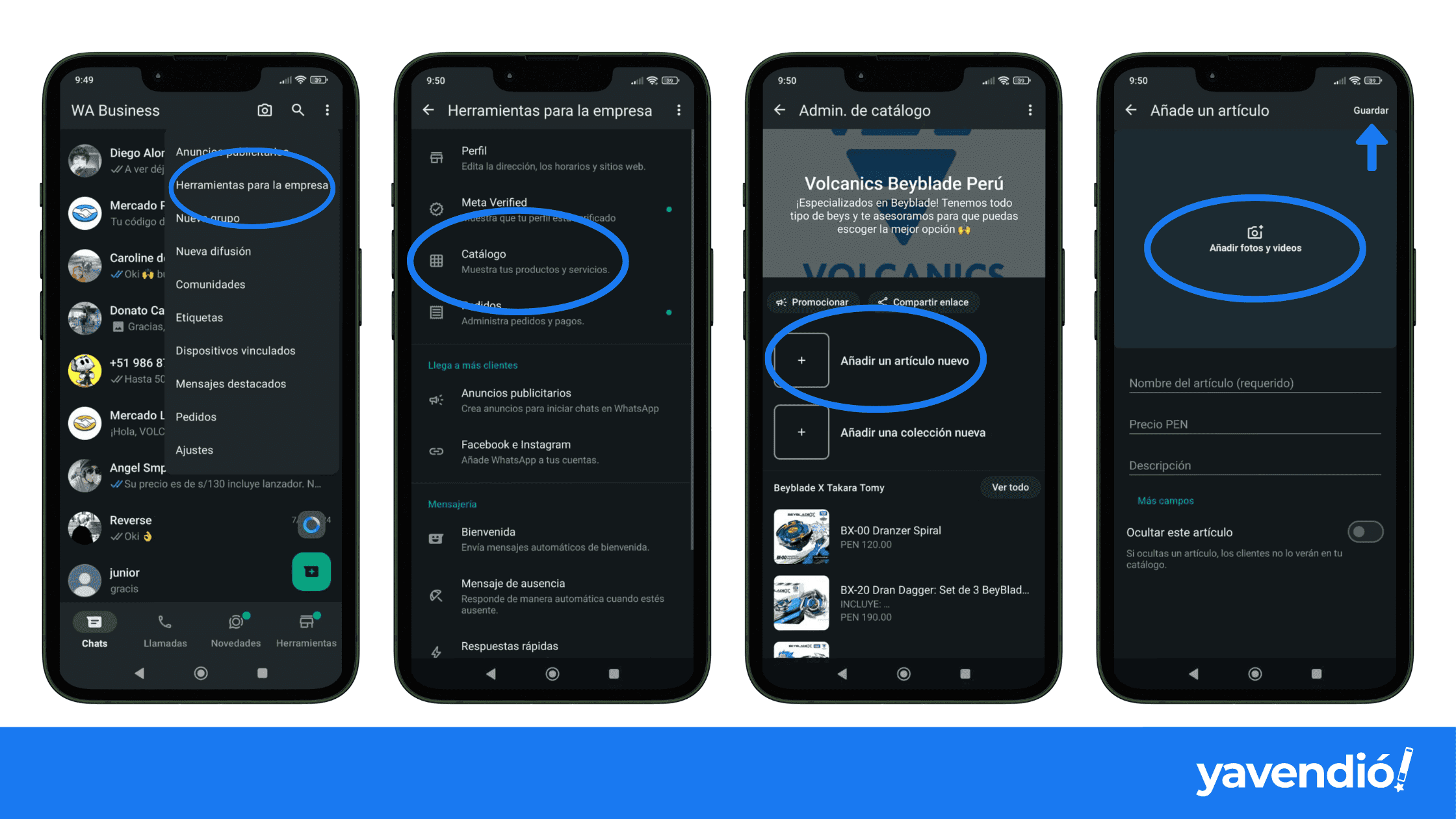
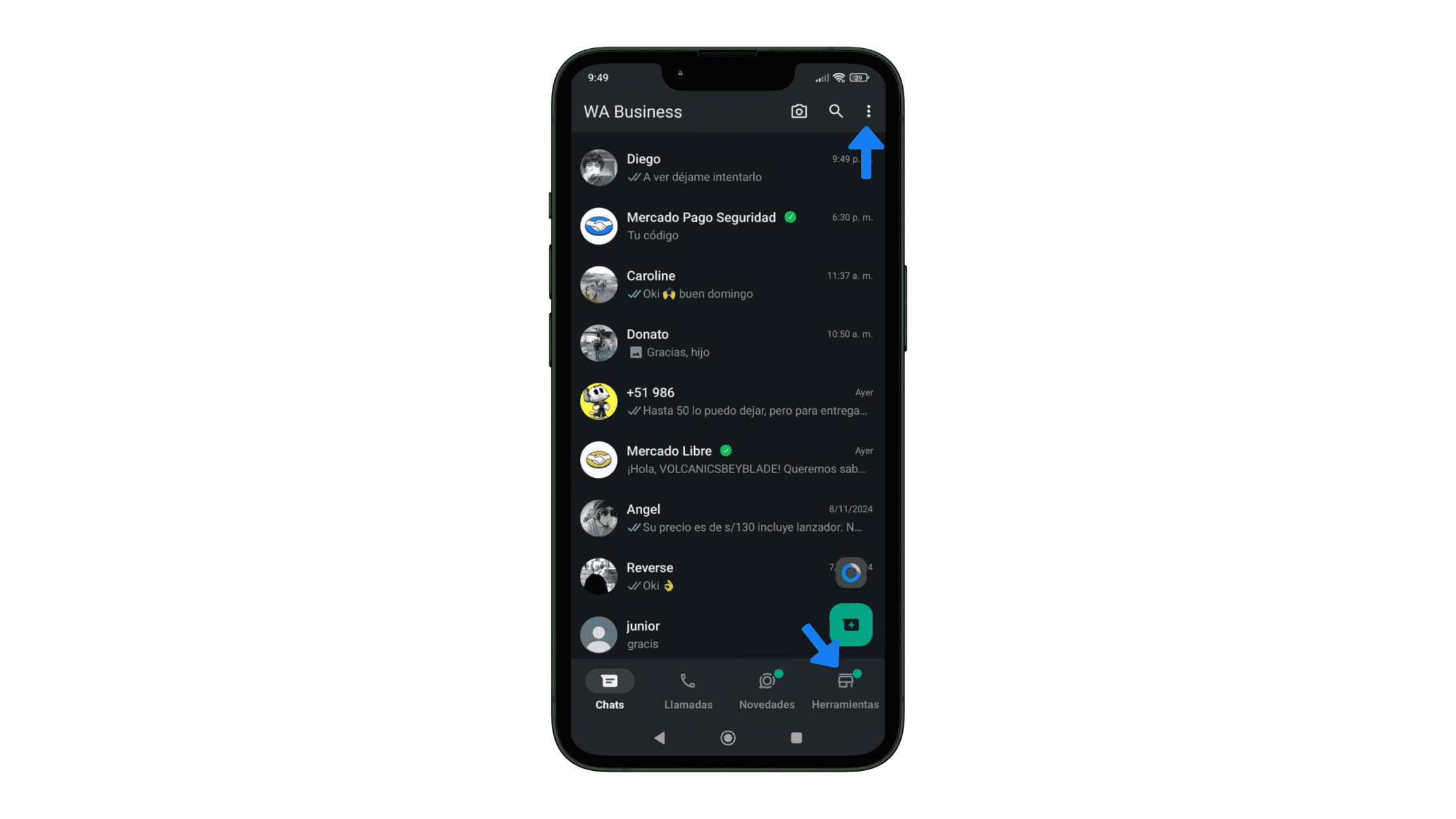
Step 1: Open "Tools" in WhatsApp
Open your WhatsApp Business and go to Tools. You'll spot it easily by the little shop 🏪 icon in the bottom menu of your screen.
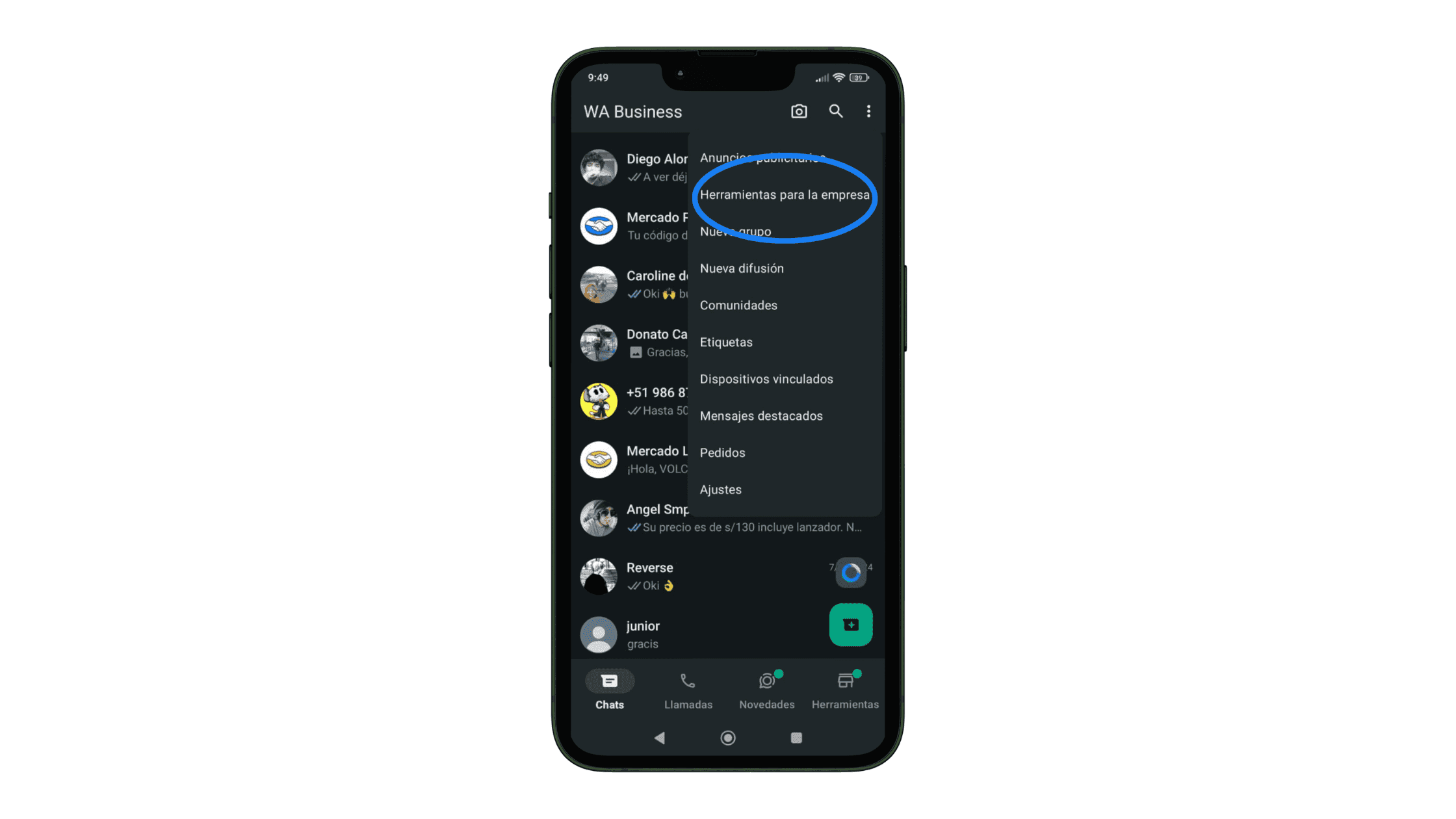
Optionally, you can also get there through the three-dots icon ⁝ at the top and tapping "Business tools".
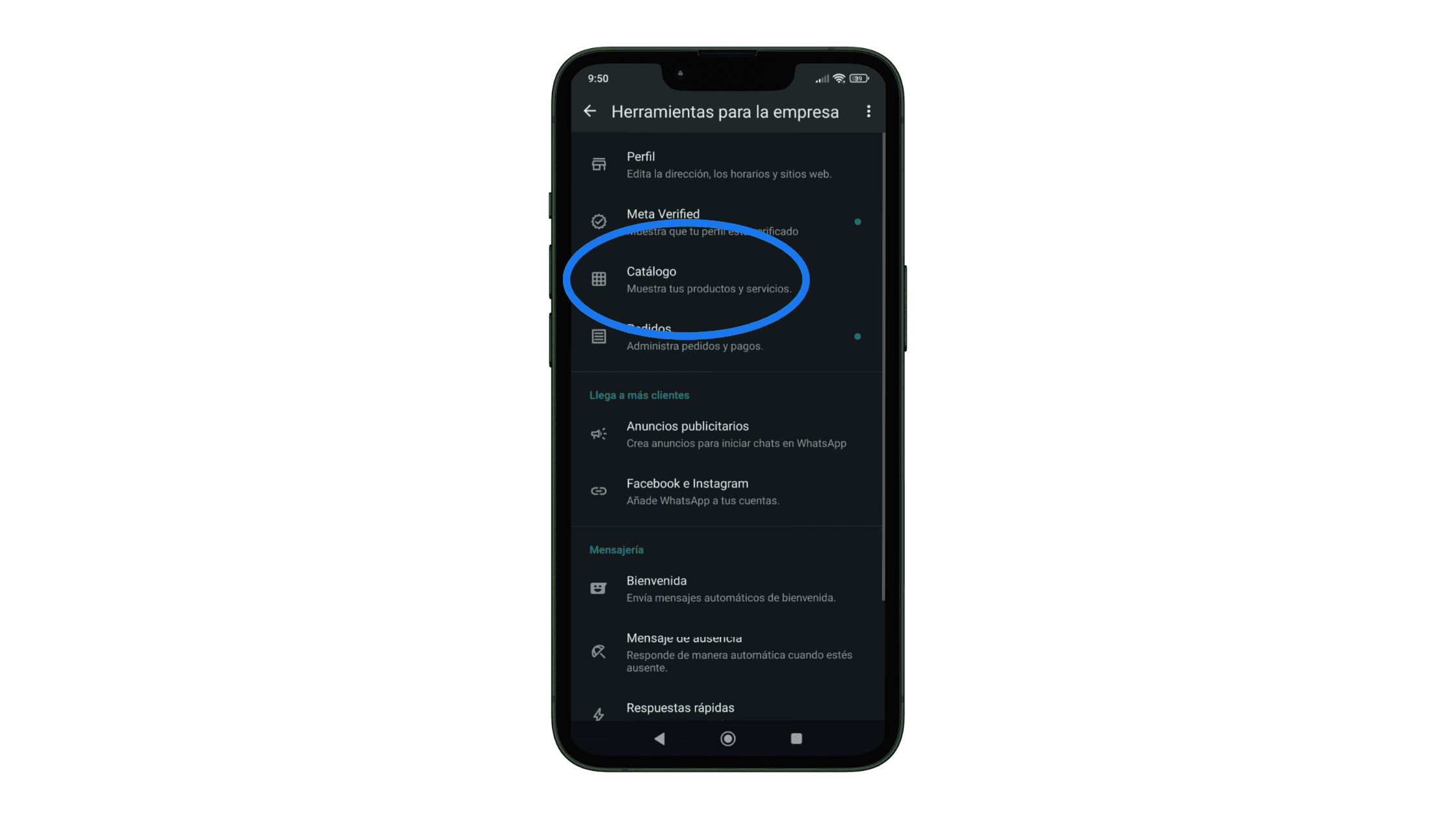
Step 2: Select "Catalog"
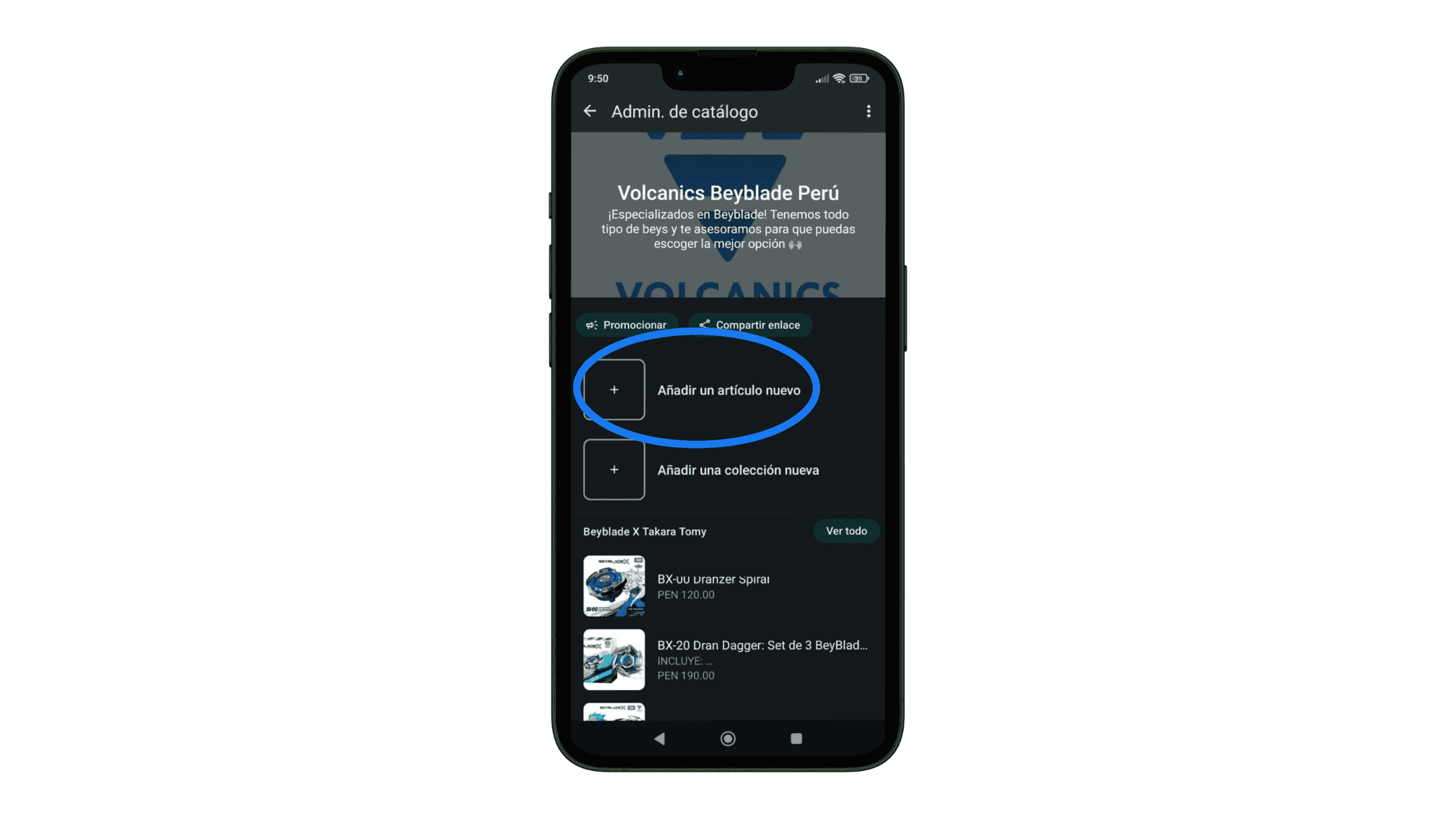
Step 3: Tap "Add new item"
Once you're in your catalog manager, you can add your products or services one by one.
Step 4: Upload your product's information and images
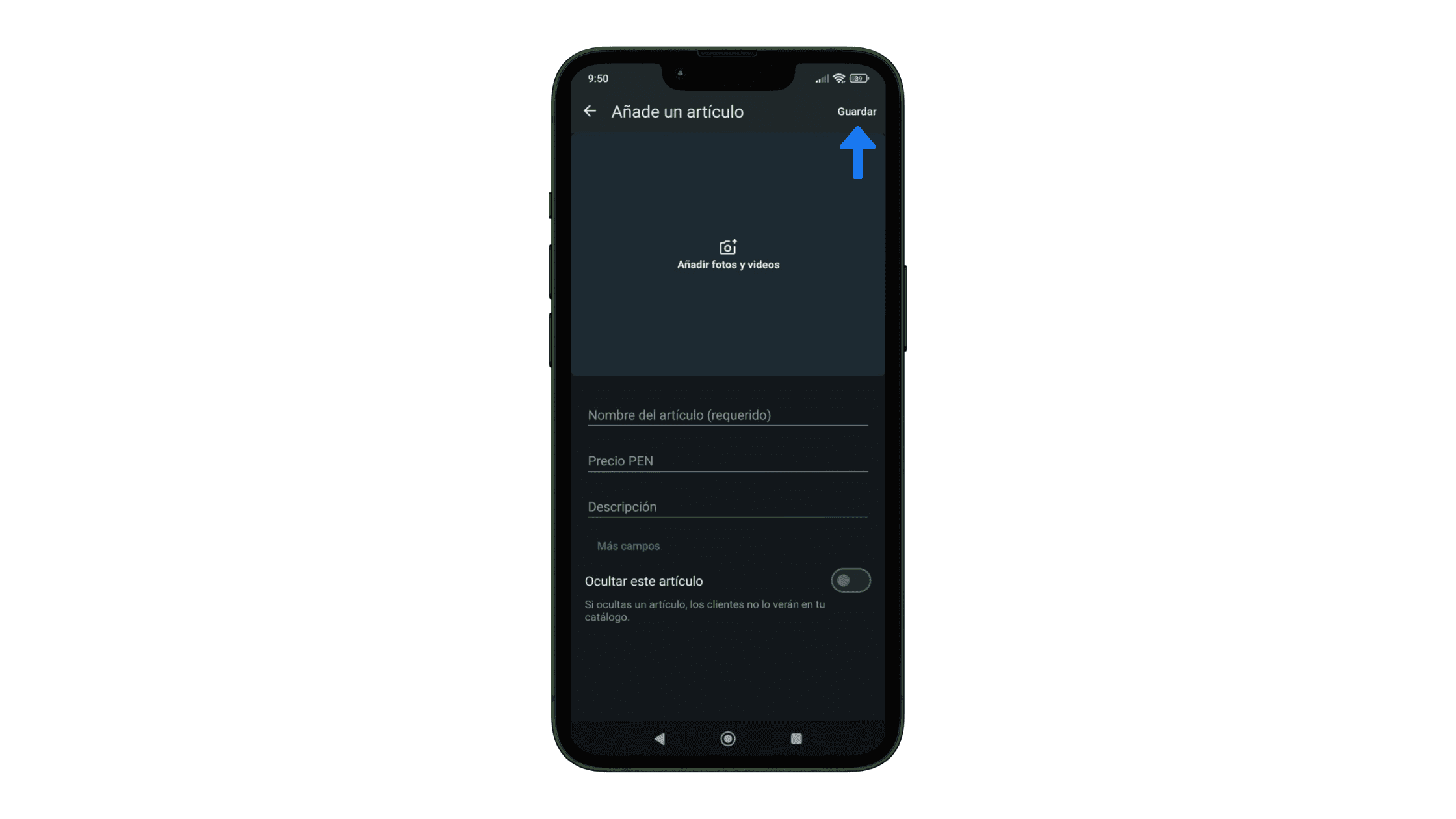
Here, tap the "Add photos and videos" option to add up to 10 photos or videos that showcase your product. Remember you have to upload at least one image.
Then, fill in the following fields and tap "Save":
- Item name (required)
- Price
- Product or service description
- Link to your website
- Item code
Step 5: Wait for the review period and you're all set!
WhatsApp reviews all of your product images and videos before they become available to your customers. This is to confirm they comply with its commerce policy. But don't worry, this review period shouldn't take more than 24 hours.
Now just repeat the same process with all of your products or services and you'll have completed your WhatsApp catalog!
Best practices for building a product catalog in WhatsApp Business
Below are a few recommendations for entrepreneurs like you who sell on WhatsApp.
Organize your WhatsApp products into collections (recommended)
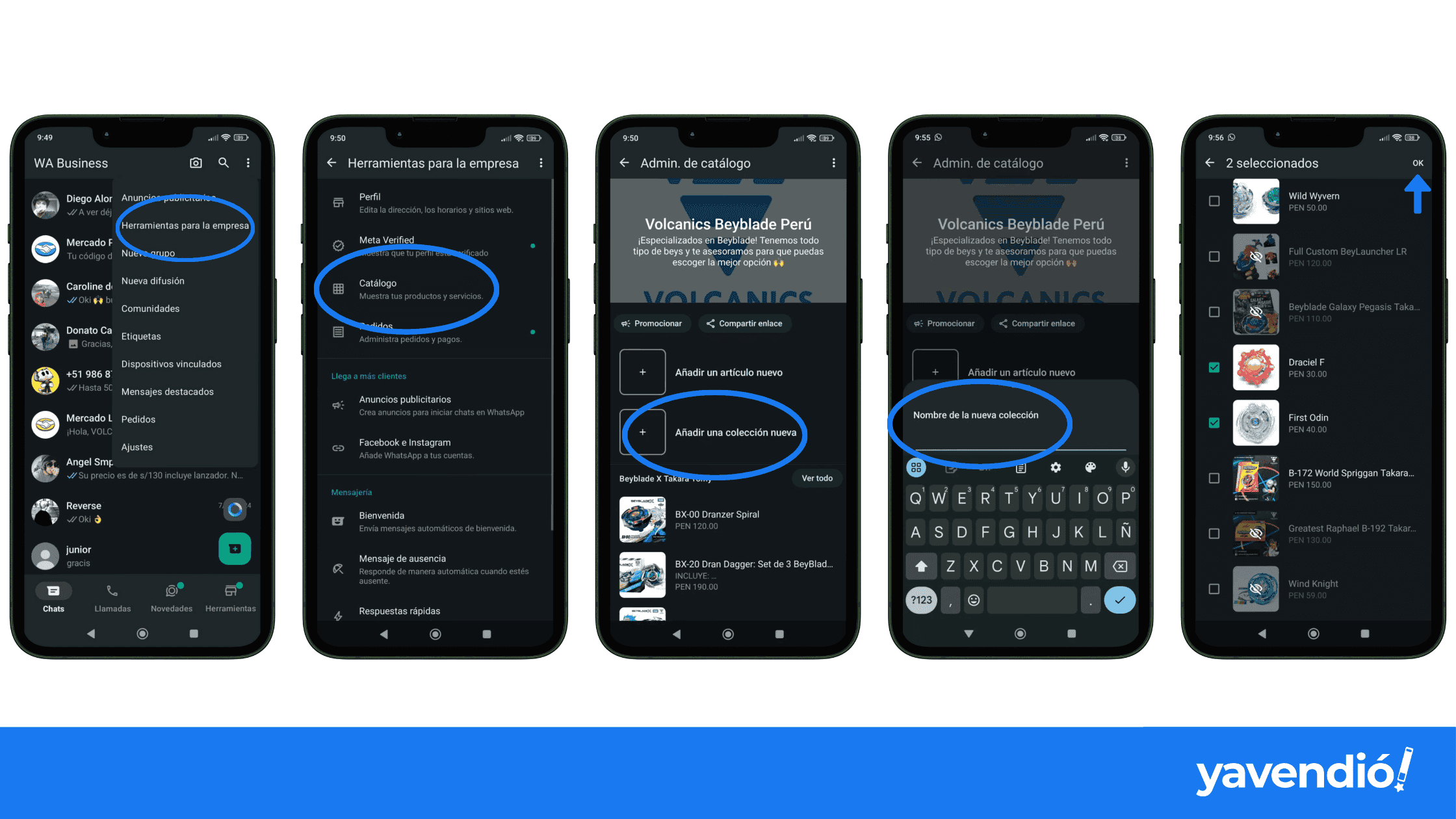
You already have a product catalog on WhatsApp, but... did you know you can create collections within your catalog?
Collections in WhatsApp Business are there to organize your products into categories and make your catalog easier to browse. This helps your customers find what they need faster.
Here's how to create a collection in your WhatsApp catalog 😉
Step 1: Go to Tools in your WhatsApp Business
Just like when you built your catalog, open WhatsApp Business and go to Tools. You can also get there through the three-dots icon at the top and tapping "Business tools".
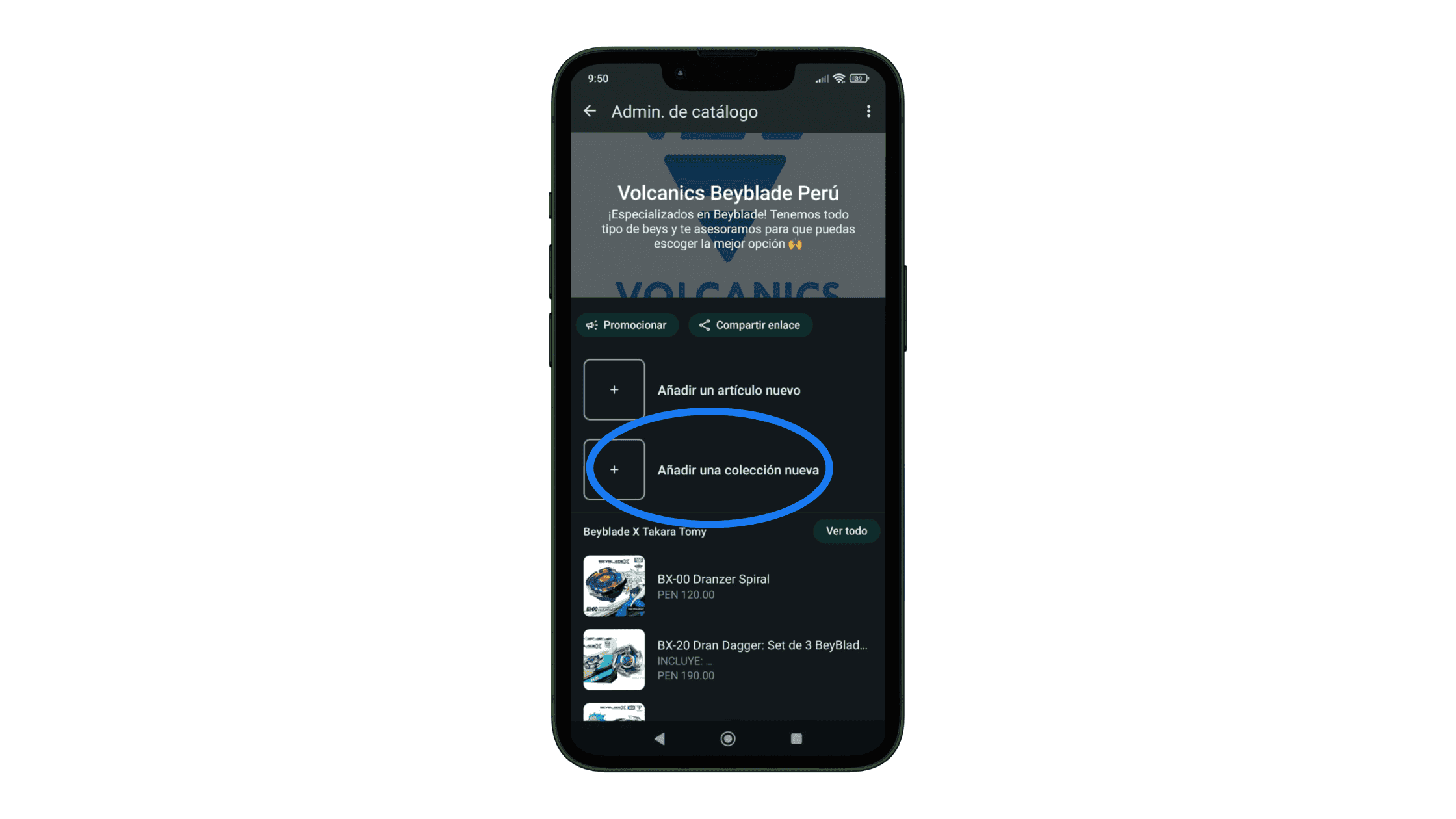
Step 2: Go into "Catalog"
Step 3: Select "Add new collection"
Unlike the steps for creating a catalog, here you have to choose "Add new collection".
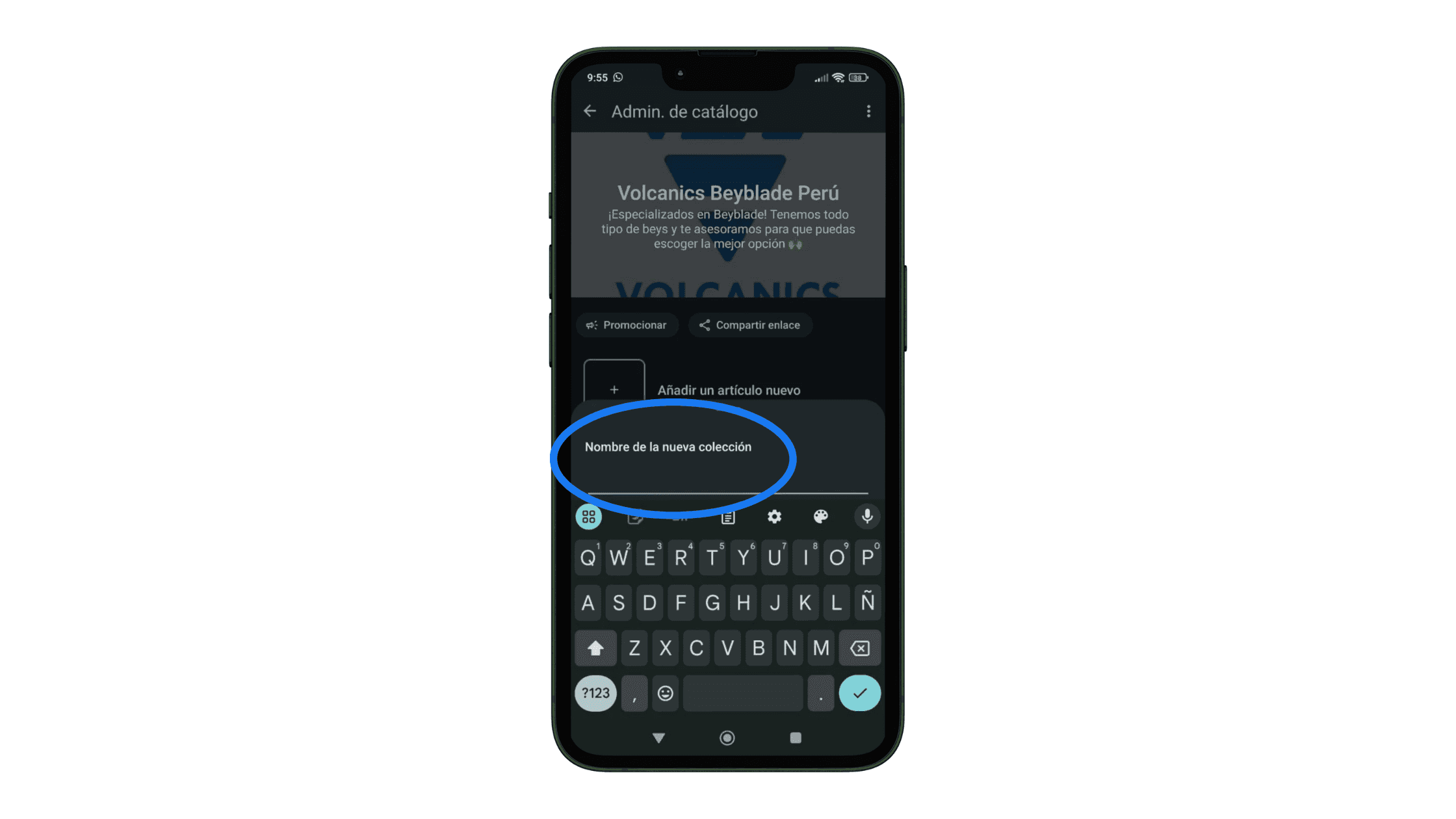
Step 4: Enter your collection's name
Now give your new collection a name. For example, if you sell clothing you can create different collections by season or by type of garment. Then, tap "Next".
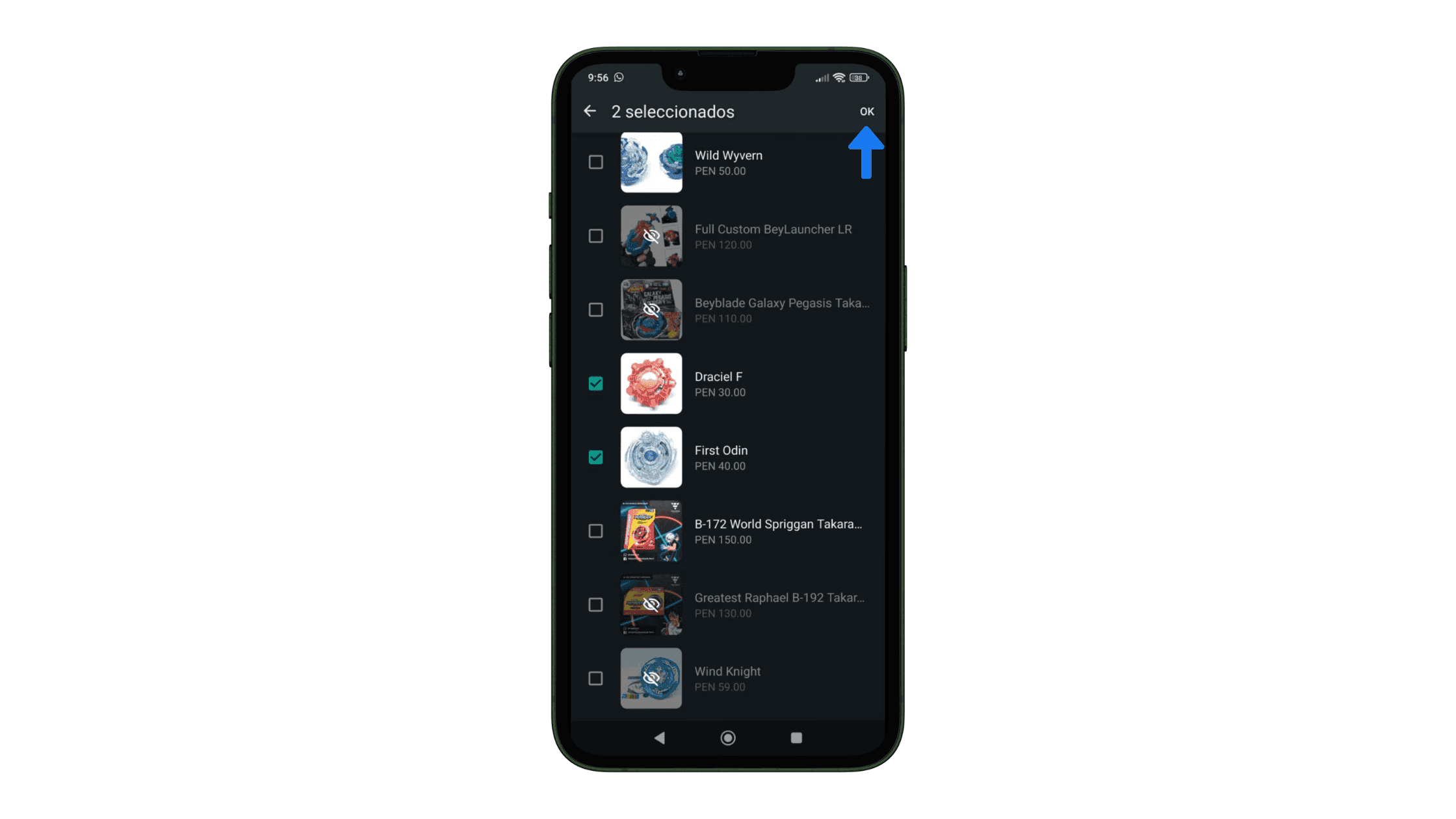
Step 5: Select the items and tap OK
To finish, choose the products that will go into your new collection and tap "OK".
Add compelling images and descriptions for your products
When you add items to your catalog, we recommend using a few photos and/or videos that show the product in action. Also, keep in mind that high-quality product photos convert 94% better, so take care with that aspect of your images.
As for descriptions, it's good practice to include details like measurements, colors, sizes and other features that answer key questions about what the product is like. If you want to go the extra mile, add a line that answers: how will this product improve your customer's life? 😉
Learn which products you can sell on WhatsApp (and which you can't)
For this, it's important to review WhatsApp's policies before publishing your catalog.
These are some of the products that are not allowed:
- Alcohol
- Tobacco or related items
- Weapons or explosives
- Medical devices
- Prescription drugs, among others.
See the full list in the WhatsApp Business Commerce Policy.
Finally, how do you share your WhatsApp catalog?
Let's make those sales come in faster by sharing your product catalog. You just need to do the following, depending on where you want to share it:
- In a customer's WhatsApp chat:
- 1Tap the "attach" icon (the one that looks like a paperclip 📎)
- 2Select "Catalog" > "Send Catalog"
- 3Tap "Send".
- On your social media:
- 1Go to "Tools" > "Business tools" > "Catalog"
- 2Tap the three dots at the top > "Share" or "Share link"
- 3Now, copy your catalog link and place it on your social media.
You can include it in your Instagram or TikTok bio, in your IG stories, or in any of your posts.
Bonus step: learn how to increase your WhatsApp sales!
Now that you have your WhatsApp catalog, you're surely about to head back to your routine of replying to those pending customer messages... and you'll probably get even more at night or on weekends. How much time do you really have left to focus on growing your business?
Imagine that one day you no longer have to be glued to your WhatsApp, and that sales keep going up because an artificial intelligence salesperson closes them for you 24/7. Sound amazing? It's possible now with yavendió!

At yavendió!, we've used the same technology we offer our customers to build our own AI agent, and you can try it right now: Chat with yavendió!sita on WhatsApp 🤖
Frequently asked questions about how WhatsApp catalogs work
- Why can't I create a catalog of my products on WhatsApp?
It's possible that the images and/or products you uploaded to your catalog don't comply with WhatsApp Business policies. You can easily check this if a red exclamation mark appears next to your product image.
If you believe it's a mistake, you can appeal the decision like this:
- 1Tap the item in question
- 2Select "Request another review"
- 3Write the reason
- 4Tap "Continue" to submit it.
- How do I upload videos to my WhatsApp catalog?
When you upload your product photos you can also include videos. Open WhatsApp Business > Tools > Business tools > Catalog > "Add new item" > "Add photos and videos".
You can upload up to 10 videos of 50 MB max each.
- How do I remove a product from the WhatsApp Business catalog?
The option to delete or remove a product from your catalog isn't very visible, but you can find it like this:
- 1Go to "Tools" > "Business tools"
- 2Go into "Catalog"
- 3Press and hold the product or service you want to delete until the Delete icon appears.
- 4Tap "Delete" and you're done.
Ready to sell more with AI?
Create your free AI agent in minutes. No card. No install.